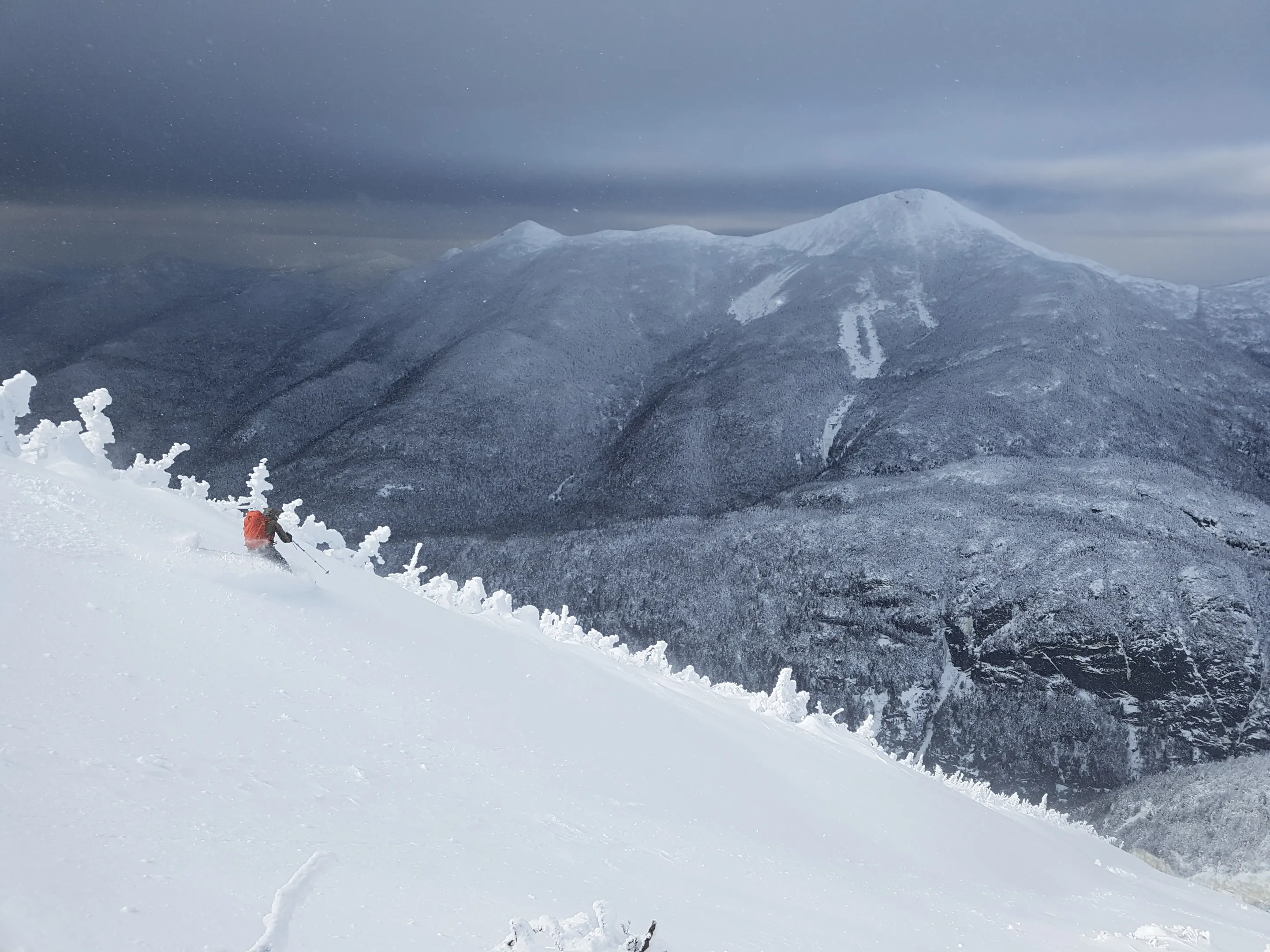
When a friend asks you for a route, you probably send more than a line. You mention the turnoff that’s easy to miss, or send a photo of the approach. If you were there yesterday, you might also tell them where you had to take your skis off and walk.
Outmap now gives those details a place on the map. You can share a route under your name, add a photo, or leave a dated conditions report. The local knowledge you’d usually share with one friend can help the next person who comes looking.
Put a route you know on the map
Think of a route you’ve explained a few times. The line shows where it goes. Your description can explain why you take the upper fork, or where the trail picks up again on the far side of a clearing. A photo taken from the direction people will approach can make that junction recognizable. Those are the details worth adding, even on a route that feels familiar to you.
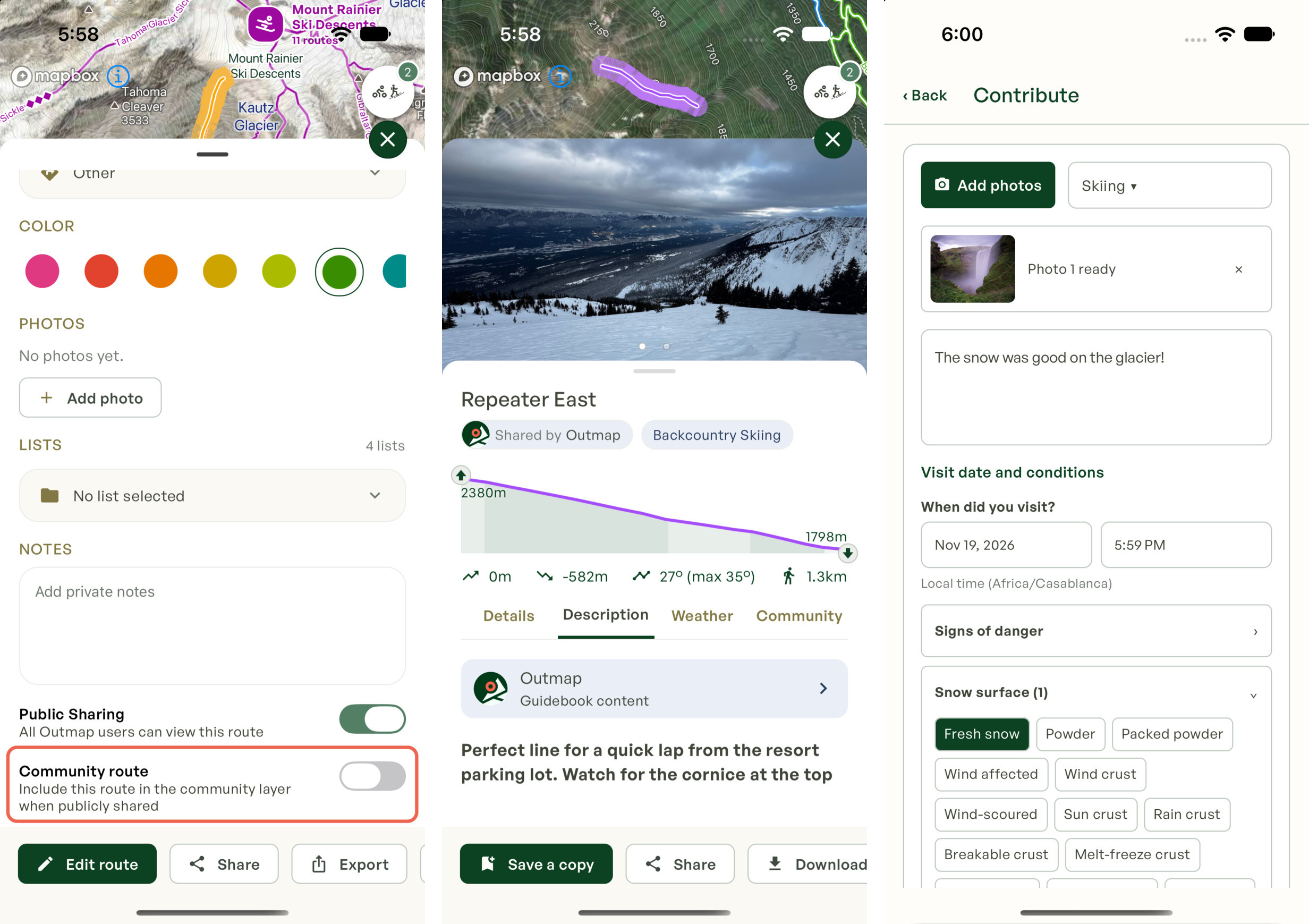
To share one, open a route you own and choose Community route in the Content tab. Add a short description and select Validate and enable. With Public Sharing also on, the route can appear in the Community layer after it syncs. People exploring the area can discover it right on the map.
The Shared by credit sits below the route name and links to your profile. You can add your name and photo so people know whose knowledge went into the route. You can also contribute a photo on its own. Open a waypoint, tap Contribute, and add the view you’d want someone to have before they get there.
Leave an update for the next person through
Some details belong in a route description for years. Others might change by the weekend. If you had to carry your skis for the first kilometre this morning, that’s worth sharing with someone planning to head out tomorrow. Give the date and say where you could finally put them on.
Put the report where it will make the most sense. For a damaged footbridge, mark the crossing on the map and choose Report conditions here. For snow cover that changed over the course of a tour, open the route’s Community tab and tap Contribute. Enter when you visited, describe the stretch you saw, and add a photo if it helps.
Before heading out, turn on Conditions reports in Overlays and use Observation date to find recent updates. When you get back, consider what you learned that would have changed your own plan. A sentence or two in the right place can give the next person the head start you would have appreciated.